Dreamina AI on Low-End Phones: What to Expect
AI video sounds like a flagship's sport, and on local-generation apps it would be. Dreamina's heavy work — the models themselves — runs on the service, while your phone composes prompts, uploads stills, and receives results. That architecture makes the Dreamina AI picture app genuinely usable on budget Android phones, and this guide separates the real constraints from the imagined ones.
The real constraints are connection, storage, and upload weight. The imagined one — that your phone is too weak to create — dissolves once the division of labour is clear, and what remains is a set of habits any modest device can keep.
If your phone photographs and browses comfortably, it can direct AI video. The rest of this page is arrangement.
What Runs Where
Your phone runs the interface, prepares uploads, and plays results. The service runs the models — the part measured in data-centre hardware — which is why the same prompt returns the same clip to a flagship and to your handset. Neither phone made the video; both merely ordered it.
This is why generation quality is not a handset feature. Your results are determined by your prompts, your source images, and the service's day — the first two of which are entirely yours.
Uploads: The Budget Phone's Real Work
Image-to-video asks your phone to send a photograph, and camera files from modern phones are heavy. On slow connections or small data plans, that upload is the session's true bottleneck — not intelligence, just freight.
Prepare working copies of stills at sensible sizes before animating: the subject large, the file modest. The model reads the scene identically, the upload finishes in a fraction of the time, and the plan survives the month. The preparation thinking matches the image-to-video guide for Dreamina AI, which assumes a well-chosen still as its starting point.
Storage: Exports Accumulate Quietly
Generated videos are the largest files your creative habit will produce, and they accumulate with stealth. Set an export-and-prune rhythm: keepers to your organised folders or cloud, drafts deleted at the week's end, and a gigabyte of breathing room defended permanently.
A nearly-full phone slows everything, including this app's caching and your camera's manners. The compatibility floor is stated in the Dreamina AI device compatibility guide; comfortable life above it is a storage habit, not a specification.
Data and Connection Strategy
Generate on home Wi-Fi as your default studio, and treat mobile data as the field kit: fine for images and short clips, expensive in aggregate for a video habit. Queue your ambitious generations for the connection that flatters them, because queue time plus a weak upload is how sessions acquire their reputation for slowness.
Judge any slow session by the connection's day before the phone's price. The same handset on good Wi-Fi feels like a different, wealthier device, because for this app, effectively, it is.
Session Habits for Modest Hardware
Close heavy apps before a creating session, batch your generations into one sitting, and let uploads finish before stacking more requests. Small devices reward serial, deliberate work and punish multitasking chaos — as, truthfully, do large ones, only more politely.
Plug in during long sessions. Screens, radios, and repeated uploads sip steadily, and a session that ends with battery to spare is one you will repeat; a session that strands you at four percent becomes a story about why you stopped creating.
Settings That Favour Smoothness
Explore at the lightest generation settings and reserve heavy output — longest durations, largest sizes — for approved recipes. This is the draft-then-produce economy from the credits guide, and on a budget phone it doubles as a performance strategy: fewer wasted waits, fewer abandoned renders.
Shorter clips also fail cheaper and teach faster. A library of strong five-second pieces, edited together, is both the budget workflow and, not coincidentally, the professional one.
The Honest Verdict
Low-end phones are legitimate Dreamina devices because the intelligence is rented by the second from machines built for it. Expect identical creations, a plainer journey on weak connections, and housekeeping duties around storage and uploads.
Spend your optimisation on prompts, stills, and Wi-Fi — the levers that exist — and let handset envy spend itself on categories where the phone actually does the work.
Your phone is the director's chair, not the rendering farm. Sit in it well: prepared stills, good connection, tidy storage, batched sessions, and the films will not know or care what the chair cost.
The next clip you make will be exactly as good as its prompt and its source image. Those were always the specifications that mattered.
If you recruit a friend or relative into creating on their own modest phone, set up their first session with them: stills prepared, Wi-Fi chosen, one successful clip completed together. A calm first hour prevents the durable myth — theirs and yours — that the handset was ever the barrier between them and the work.
Remember the order of suspicion when any session disappoints: connection first, then uploads and storage, then the service's queue, and only at a distant fourth the phone itself. Nearly all frustration with this app is aimed one layer too low, and aiming, as this page has tried to show, is a learnable skill.
Judge the phone by the films it has carried out of it, not by the numbers on its box. Counted that way, modest hardware has a distinguished record in this medium already — and your shelf is the evidence.
Related Articles
How to Update Dreamina AI to the Latest Version
Update Dreamina AI on Android in place: check the version, keep your projects safe, verify with a familiar generation, and fix stalled updates.
Read More →
Dreamina AI Text-to-Image Guide: From Words to Pictures
Create images from text in Dreamina AI: prompt structure that works, style and ratio choices, and the iteration loop behind every good result.
Read More →
Dreamina AI Text-to-Video Guide: Your First AI Clips
Create video from text in Dreamina AI: prompts that describe motion, camera language, duration and ratio choices, and fixing clips that drift.
Read More →
Dreamina AI Prompt Tips for Better Results Every Time
Prompt craft for Dreamina AI images and video: ordering, specificity, negative guidance, style anchoring, and the iteration notebook that compounds skill.
Read More →
Image-to-Video in Dreamina AI: Animate Your Photos
Turn still photos into moving clips in Dreamina AI: which photos animate well, describing motion, keeping faces stable, and creative uses that work.
Read More →
Dreamina AI Canvas and Editing Tools Guide
Use the canvas editor in Dreamina AI: expand images, retouch regions, remove distractions, and blend generations into finished compositions.
Read More →
How to Upscale and Enhance Images in Dreamina AI
Upscale AI images for print and large screens: what enhancement can and cannot add, preparing files, checking results, and avoiding plastic over-processing.
Read More →
Dreamina AI for Social Media Creators: A Practical Workflow
A creator's workflow for Dreamina AI: series planning, covers that earn clicks, animated posts from stills, and batching a week of content in one sitting.
Read More →
Dreamina AI Credits Explained Simply
How credits work in AI generation apps like Dreamina AI: what consumes them, why video costs more than images, and habits that stretch a balance.
Read More →
Dreamina AI Video Not Generating? Fixes That Work
When Dreamina AI video generation fails, stalls, or returns errors: queue and connection checks, prompt causes, credit checks, and when to simply retry.
Read More →
Dreamina AI vs CapCut: Which Should You Use?
Dreamina AI generates footage; CapCut edits it. An honest comparison of generation versus editing, and the workflow that uses both in sequence.
Read More →
Product and Marketing Visuals With Dreamina AI
Create product and marketing visuals with Dreamina AI: hero images, lifestyle scenes, animated listings, and the honesty rules for commercial work.
Read More →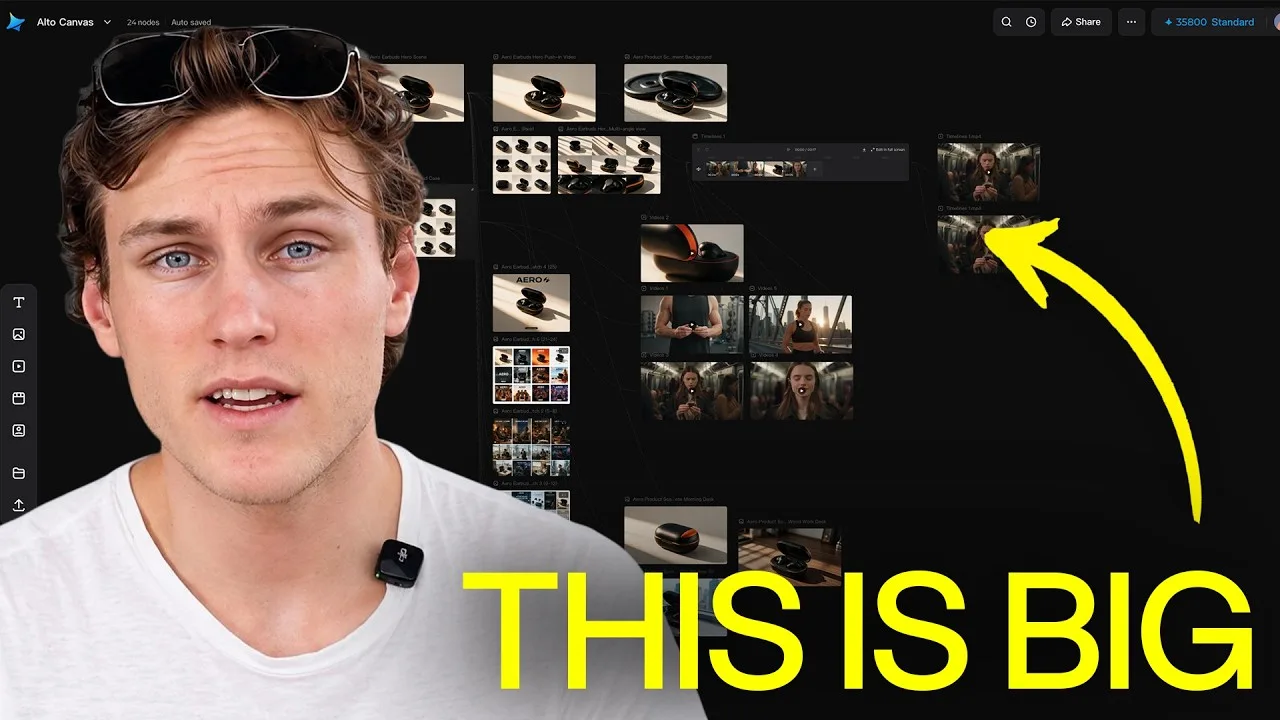
Dreamina AI Common Questions Answered
Plain answers about Dreamina AI: images versus video, credits, quality, rights, CapCut's role, and what to try when generations disappoint.
Read More →
How to Install Dreamina AI on Android Phones and Tablets
Learn how to install Dreamina AI on Android with simple steps, setup tips, and common checks before opening the app for the first time.
Read More →
Dreamina AI Features Guide for Android Users
Explore the main Dreamina AI features on Android, including prompt-based creation, image editing, and practical creative uses.
Read More →
Dreamina AI Device Compatibility Guide for Android Users
Find out which Android devices are best suited for Dreamina AI and what to check before installing the app on phones or tablets.
Read More →
Core Creative Functions in Dreamina AI Explained
Understand the main creative functions in Dreamina AI, from text prompts and image editing to visual drafting and design-focused use.
Read More →
Dreamina AI Not Working Common Problems and Fixes
Learn the common Dreamina AI problems on Android and the simple fixes that can help with installation, loading, and basic app performance.
Read More →
Best Ways to Use Dreamina AI on Mobile More Effectively
Discover practical ways to use Dreamina AI on mobile for better prompts, cleaner workflows, and more useful creative results.
Read More →